

Create and use a variable
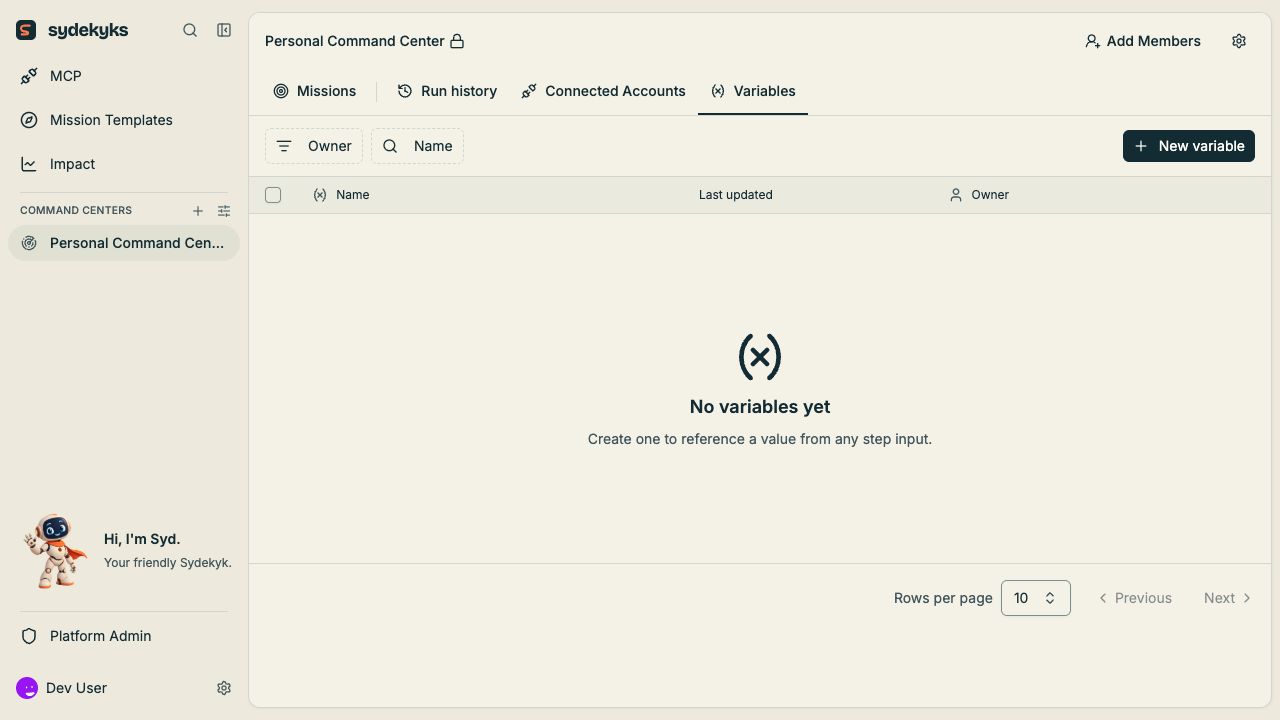
- Open the workspace’s Variables tab.
- Choose New variable.
- Enter a name using letters, numbers and underscores.
- Enter its value and choose Create.
- In a mission step, choose the variable from the data selector or insert
{{variables['NAME']}}.
Rotate a value
Open the variable row menu, choose Edit, then Rotate value. Enter the replacement and choose Save new value. The upstream variable implementation encrypts stored values and hides the previous value in the list and edit dialog. People with write access may have a reveal operation, so hiding a value in the UI does not make it inaccessible to every authorized operator. Check the missions that use the variable after rotation. A changed endpoint or resource ID can change where the mission sends data.Delete
Find and replace references before deleting the variable. Deletion does not remove the references from missions; unresolved references can fail in later runs. Fine-grained project-role and administrative-audit procedures depend on deployment features and are excluded from the Community instructions here.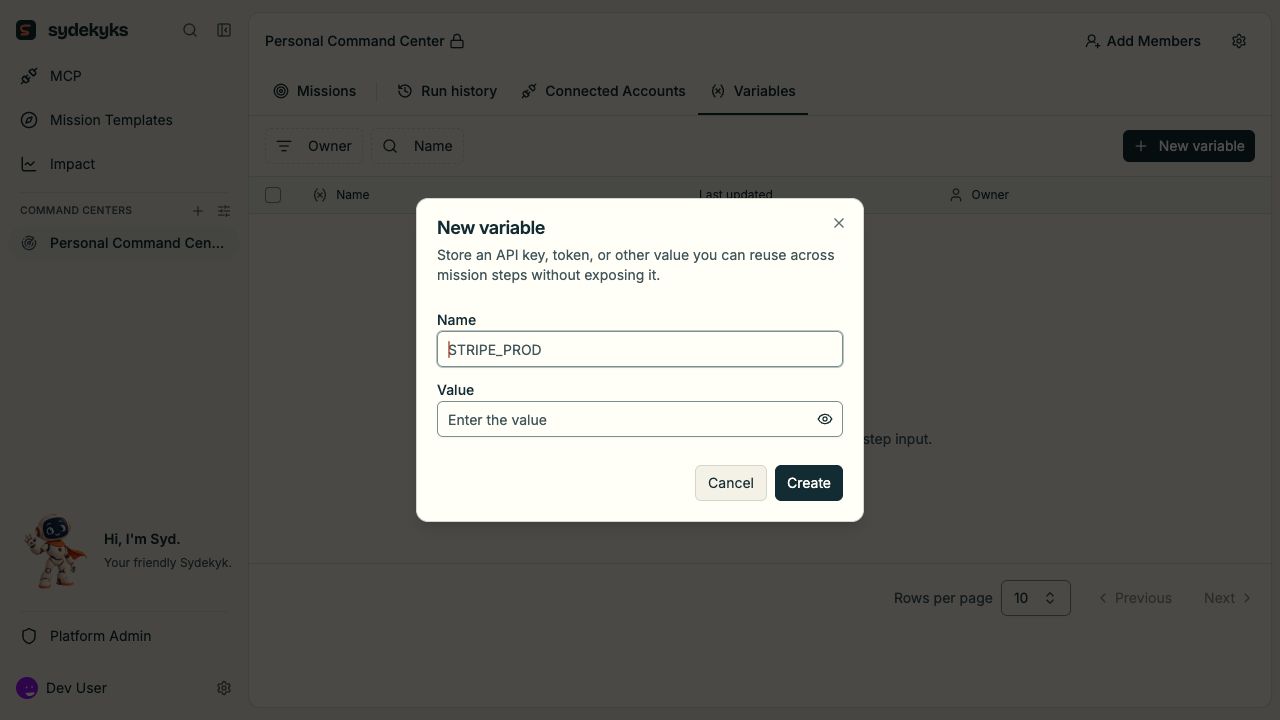
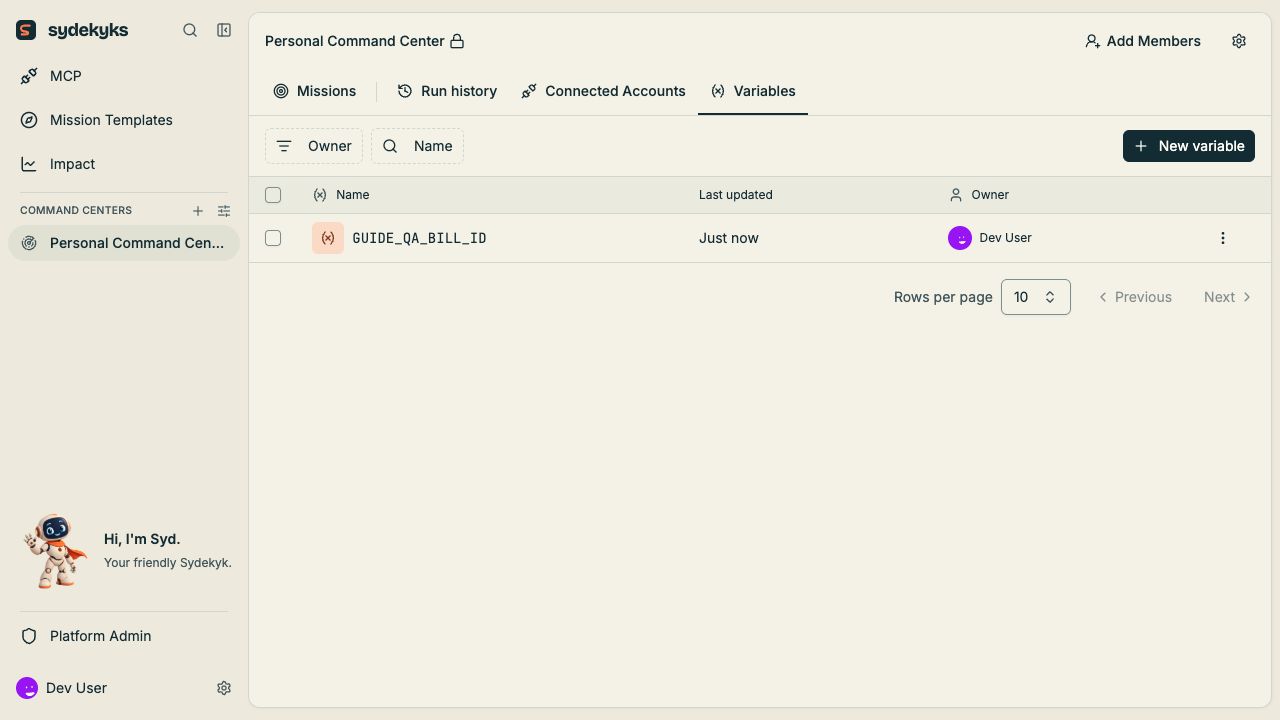
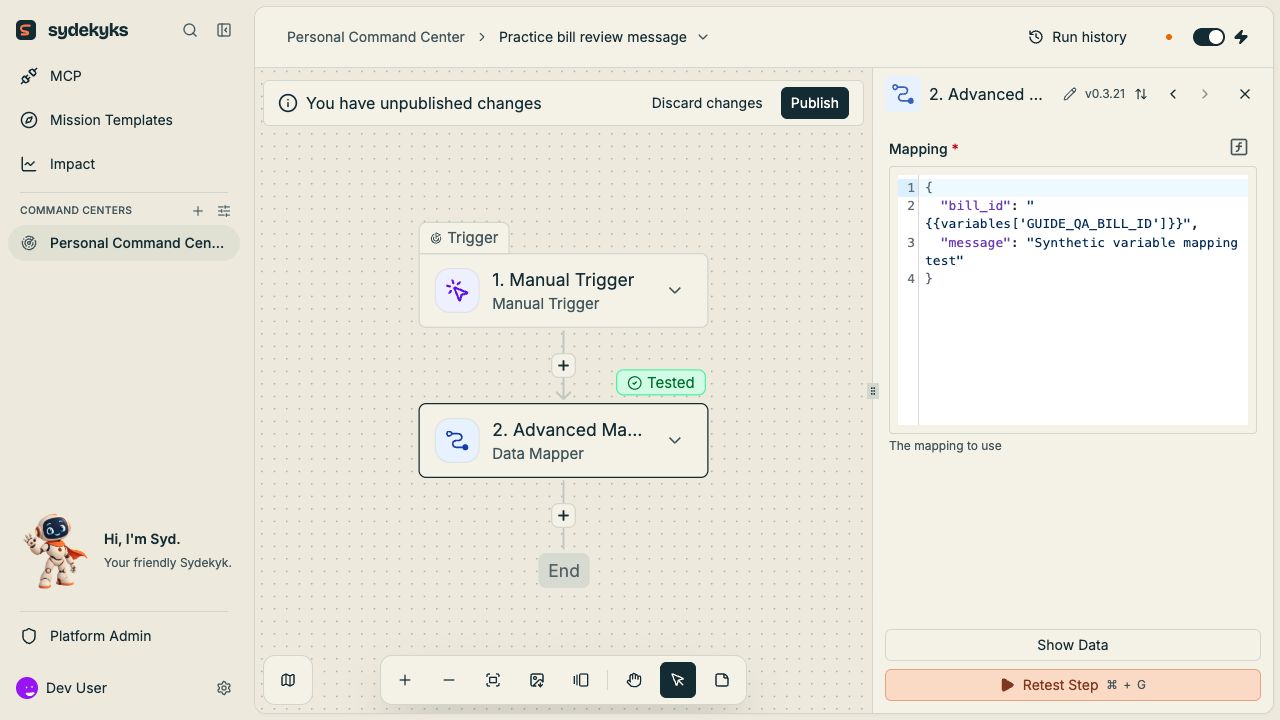
{{variables['GUIDE_QA_BILL_ID']}} was copied from the row menu and tested after rotation on 7 October 2026.