
Create a connection
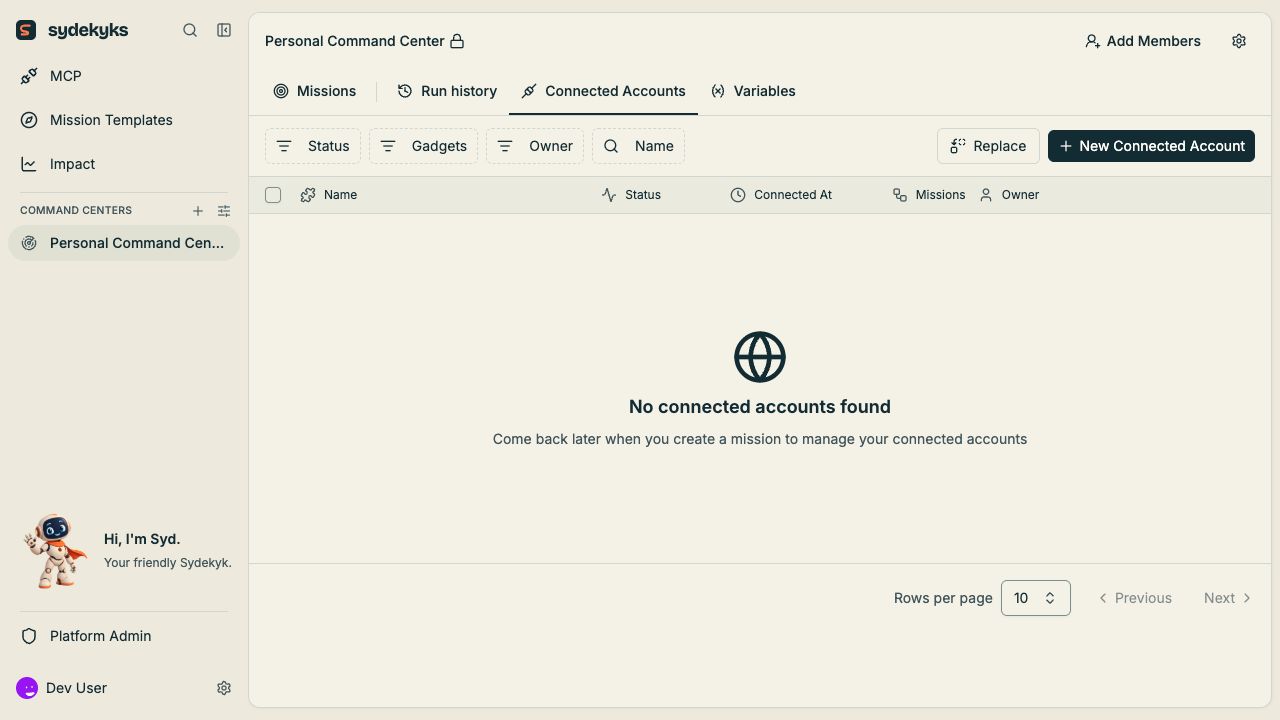
- Select the intended Command Center.
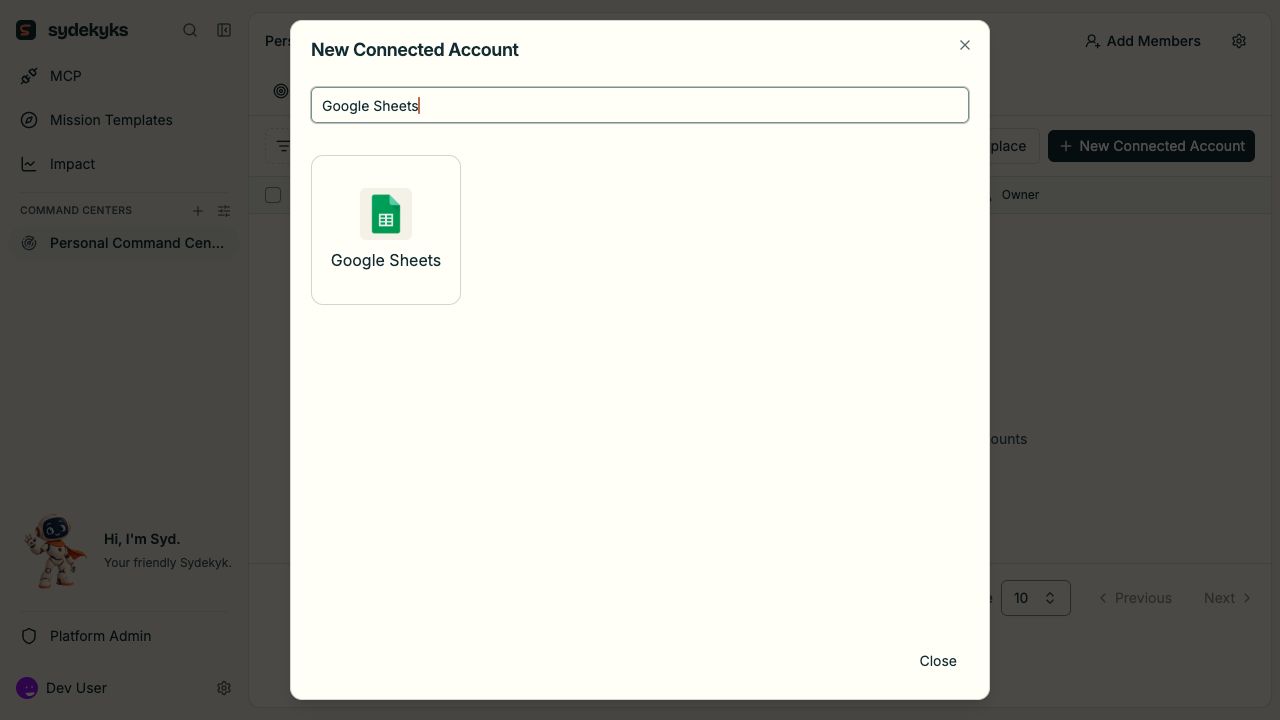
- Open Connected Accounts and choose New Connected Account, or add an account from the selector in a mission step.
- Choose the app and give the connection a clear name, such as Finance test mailbox.
- Follow the app’s authentication instructions.
- Save the connection, return to the step, and select it.
- Test an appropriate read action before using the account for writes.
OAuth accounts
Choose the account on the provider’s sign-in screen and review the requested access. The provider sends you back to the deployment after authorization. If the redirect fails, ask your operator to check the public platform URL and OAuth application configuration.API keys and other credentials
Use a key or account with the access the mission needs. Enter the credential in the connection form. Keep it out of step text, notes, prompts, screenshots and shared exports. Some gadgets use basic authentication or a custom connection form.Choose the right account
Two connections to the same app can represent different accounts or environments. Check the connection name, destination resource and test data before testing a step that sends, writes or deletes anything.Reconnect an account
If a run reports an expired or revoked credential, open the connection and follow the reconnect or update action available for that app. Test the affected step again. Reconnecting does not automatically repair an incorrect sheet ID, mailbox selection or permission scope.Remove a connection
Find the missions that use the connection before removing it. Update those missions to use another account or disable them while you make the change. Removing a connection can make future runs fail. Revoke access at the provider too when the app account should no longer be reachable. Platform-wide shared connections are a separate optional feature and are excluded from this Community guide. See feature availability.